Introduction
In my previous post, I described running Claude Code as a separate macOS user for filesystem isolation. The cc function uses sudo to switch users:
cc function (click to expand)
cc() {
    claude-access add .
    sudo -u claude -i bash -lc "cd '$(pwd)' && claude --dangerously-skip-permissions $*"
}
I have been using it regularly for a while, and I’m very happy about it. However, I found a limitation while trying the Dev Browser Skill.
In this post, I describe how I managed to enable browser skill for Claude Daemon. Using this setup, Claude successfully added dark mode to this website.
The Problem with sudo
When you run sudo -u claude from your terminal, the process doesn’t inherit the correct audit session credentials. Attempting to launch a browser via Playwright fails with:
browserType.launch: Target page, context or browser has been closedThe underlying Chrome process exits immediately with signal=SIGTRAP.
Why This Happens: Audit Sessions
Beyond Unix permissions (UID/GID), macOS processes also inherit bootstrap namespaces and audit sessions, which affect GUI service access. sudo -u claude only changes the UID—the process still inherits your audit session. Chrome validates against WindowServer using the audit session, so it fails when the UID and session don’t match.
Beyond browser access, this also explains other issues with cc: screenshots capture your screen instead of claude’s, and macOS permission dialogs may appear when claude triggers certain system APIs.
More details (click to expand)
Bootstrap namespaces control which system services a process can discover (GUI vs background). Audit sessions track security credentials per login session—WindowServer checks this before allowing GUI access.
You can verify which mode you’re in:
launchctl asuser $(id -u) launchctl print gui/$(id -u) 2>&1 | head -1launchctl asuser $UID <command> “executes a program in the bootstrap context of a given user” (per launchctl help), which requires valid audit session credentials.
Why it fails in cc mode:
- You’re claude’s UID via sudo
- But your audit session credentials are still from your original login
asusertries to switch to claude’s audit session- System rejects it because your current audit session doesn’t have permission
- Output:
Could not switch to audit session...
Why it works in ccb mode:
- You’re claude’s UID AND your audit session is already claude’s (from GUI login)
asusersucceeds—you already have the right credentials- Output:
gui/<uid> = {
Solution 1: macOS Fast User Switching + tmux
One option is to log into claude’s GUI, start tmux, and attach via sudo. But this requires manual tmux management for each session.
Solution 2: socat in tmux
The solution is to run a socat server inside the tmux session:
- Start a
socatserver in theclaudeuser’s GUI session (via tmux) - Connect to it from your main user’s terminal via Unix socket
- Start Claude Code in this shell
Now we just need to automate it.
Setup
This guide assumes you’ve already set up the claude user and claude-access script from the previous post.
You’ll also need socat installed:
brew install socatStep 1: Enable Full Disk Access
Important: The terminal app used to start the socat server needs Full Disk Access. Without this, Claude Code will fail with obscure errors when trying to access directories like ~/Documents. It took me and Claude many hours to debug this.
Step 2: Set Up Claude’s Shell
Next we’ll need to automate the process of starting a new Claude Code process:
- On the user/client side, we’ll pass in the working directory, terminal size, and additional arguments to Claude Code.
- On the claude/socat server side, it needs to automatically launch the correct command after establishing a new connection.
Here is the solution Claude came up with:
┌──────────────────┐                              ┌──────────────────────────────┐
│  Your Terminal   │                              │  Claude's GUI Session (tmux) │
│                  │                              │                              │
│  ccb function:   │                              │  socat server:               │
│  1. Write cmd ───────▶ /Users/Claude/tmp/       │  - listens on unix socket    │
│     to file         shell-cmd                   │  - forks on connect          │
│                  │                              │         │                    │
│  2. Connect to ─────────────────────────────────────▶ spawns shell-server      │
│     socket       │  /tmp/claude-shell.sock      │         │                    │
│        │         │                              │         ▼                    │
│        │         │                              │  shell-server:               │
│        │         │                              │  - reads cmd file            │
│        │◀─────────────────────────────────────────── runs Claude Code          │
│   stdin/stdout   │                              │                              │
└──────────────────┘                              └──────────────────────────────┘
Now let’s set it up.
Create the shell server script that socat will execute:
claude-shell-server (click to expand)
sudo -u claude mkdir -p /Users/Claude/bin /Users/Claude/tmp
sudo -u claude chmod 777 /Users/Claude/tmp  # Allow main user to write commands
sudo -u claude tee /Users/Claude/bin/claude-shell-server << 'EOF'
#!/bin/zsh
export PATH="/Users/Claude/.local/bin:/opt/homebrew/bin:$PATH"

# Read command from file if present
_cmd_file="${CLAUDE_CMD_FILE:-/Users/Claude/tmp/shell-cmd}"
if [[ -s "$_cmd_file" ]]; then
    _cmd="$(cat "$_cmd_file")"
    : > "$_cmd_file"
    exec zsh -l -i -c "$_cmd"
else
    exec zsh -l -i
fi
EOF
sudo -u claude chmod +x /Users/Claude/bin/claude-shell-server
Step 3: Start the socat Server
Log into the claude user’s GUI session (use macOS Fast User Switching), open Terminal, and start tmux:
tmux new -s claude-serverThen start the socat server:
socat UNIX-LISTEN:/tmp/claude-shell.sock,fork,mode=666 \
  EXEC:'/Users/Claude/bin/claude-shell-server',pty,stderr,setsid,sigint,sane
You can now switch back to your main user (the socat server keeps running).
Step 4: Create the ccb Function
Add this to your ~/.zshrc:
ccb function (click to expand)
# Browser-compatible claude - connects via socat
ccb() {
    local dir="$(pwd)"
    local rows=$(tput lines)
    local cols=$(tput cols)
    local system_prompt="You are running as user claude..."

    if [[ ! -S /tmp/claude-shell.sock ]]; then
        echo "Socket not found. Start socat in claude's GUI session:"
        echo "  socat UNIX-LISTEN:/tmp/claude-shell.sock,fork,mode=666 EXEC:'/Users/Claude/bin/claude-shell-server',pty,stderr,setsid,sigint,sane"
        return 1
    fi

    claude-access add . 2>/dev/null

    # Write command to file, then connect
    echo "stty rows $rows cols $cols; cd '$dir' && claude --dangerously-skip-permissions --append-system-prompt '$system_prompt' $@" \
      > /Users/Claude/tmp/shell-cmd
    socat -,raw,echo=0 UNIX-CONNECT:/tmp/claude-shell.sock
}
Step 5: Use It
cd ~/your/project
ccb
Appendix
Potential Race Condition
The socat server allows multiple concurrent connections. They all use the same hard-coded command file. In practice, you start one session at a time, so there’s no race condition on the shared command file.
If you need truly simultaneous sessions, you could extend this with per-session command files or a FastAPI server that spawns socat processes on demand.
“Unexpected error” when starting Claude Code
This usually means Full Disk Access isn’t enabled for the terminal running the socat server. Check System Settings → Privacy & Security → Full Disk Access.
Footnotes
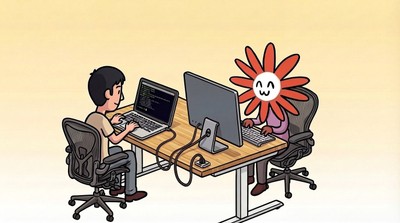
Character designed by @voooooogel, image generated by gemini-3-pro-image-preview.↩︎